Take the order as usual
Use your current till or ordering process. Enter the pickup number separately in Pingora and show its QR code on your phone or tablet.

PINGORA FOR FOOD TRUCKS & STREET FOOD
Keep the serving window for serving. Give each order a QR code, let guests step aside and follow its status, then notify them when their food is ready.
14-day trial · No payment card required

A SIMPLE ROUTINE FOR EVERY ORDER
Use your current till or ordering process. Enter the pickup number separately in Pingora and show its QR code on your phone or tablet.
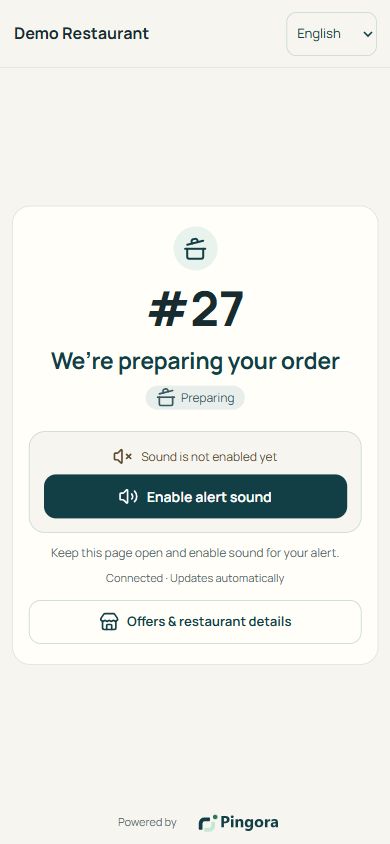
The guest scans the code and sees their own order page. Ask them to activate sound or supported notifications before stepping away.
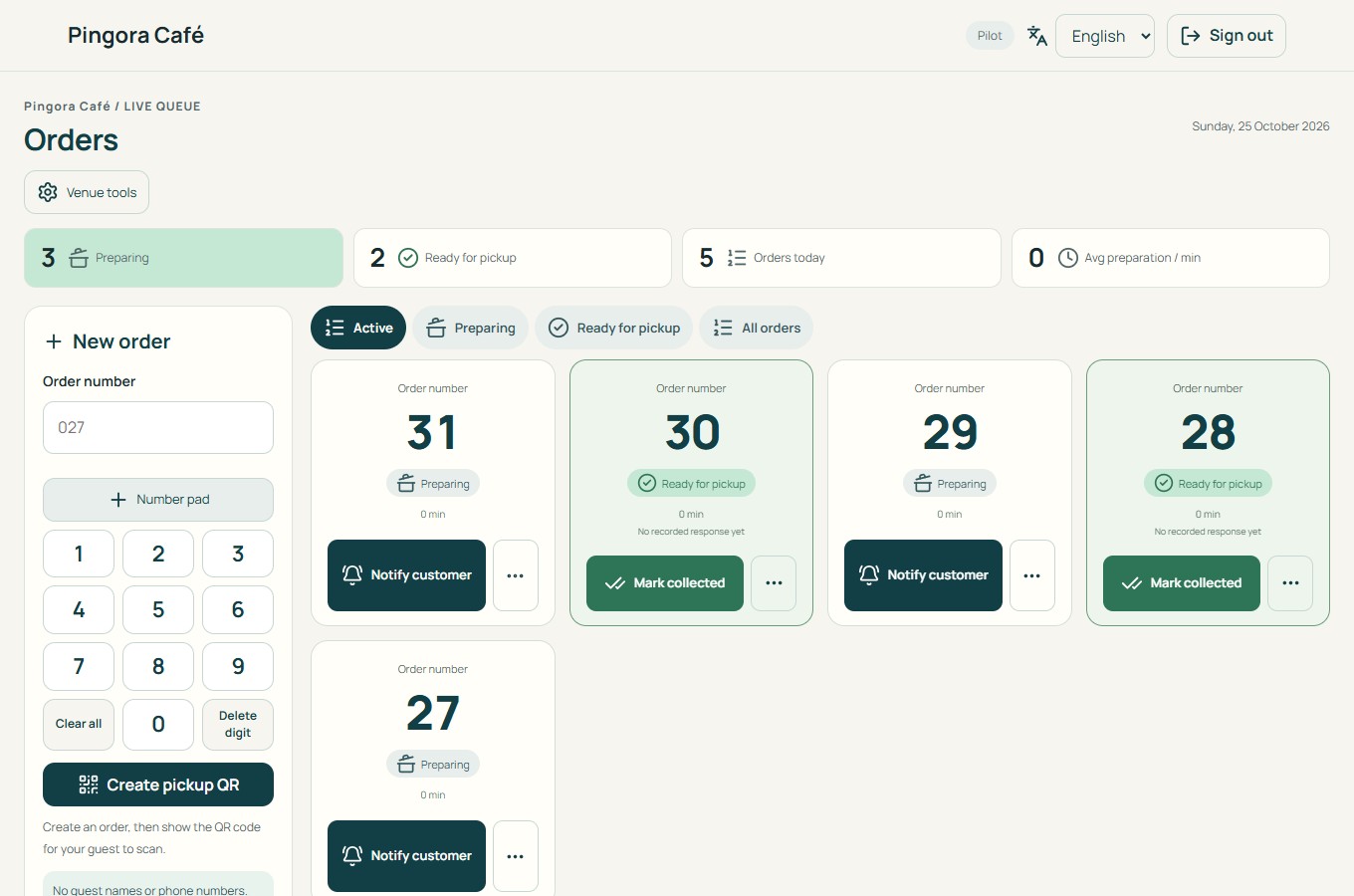
Tap Ready in Pingora. You can call again, see the guest’s acknowledgement and mark the food collected when you hand it over.
YOUR ORDERS, EVEN WHEN IT GETS BUSY
Preparing, ready, cancelled and collected orders stay distinct. The screens below show the actual restaurant demo workflow used for pickup.
IF YOU HAVE A SCREEN AT THE HATCH
Start with Basic for order management and guest alerts. Add Plus if you want a browser-enabled guest screen for QR handoff, ready numbers and your own offers.
Bring your own screen and internet connection. Hardware, automatic POS integration and food payment are not included.
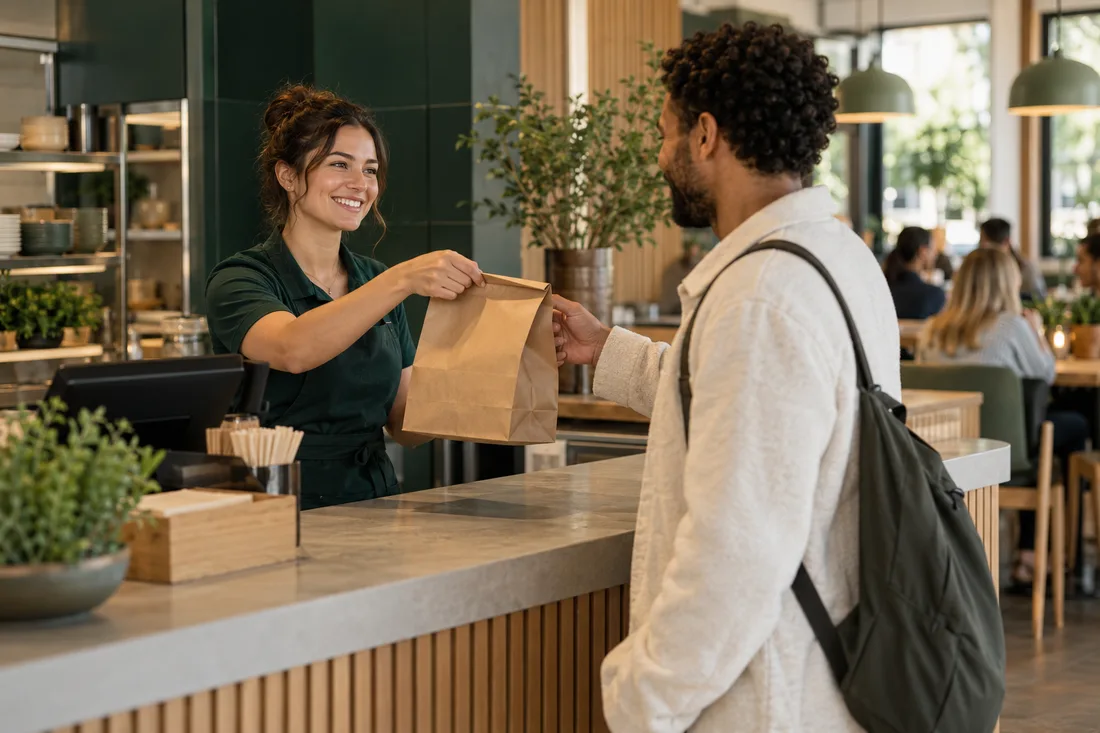
Illustrative image created for Pingora. Not a customer endorsement.
14 DAYS FREE · NO CARD REQUIRED
A simple start
Manage orders and notify guests on their phones.
Contact us for pricing
Annual plan: 12 months with 10% off.
FOR A COMPLETE IN-VENUE EXPERIENCE
Add a branded display inside your venue.
Contact us for pricing
Annual plan: 12 months with 10% off.
Page sound requires the guest to activate it and keep the page open. On Android, optional Web Push in a supporting browser can notify in the background after permission. Delivery and sound depend on settings and connectivity.
On iPhone, background web notifications require adding the order page to the Home Screen and enabling notifications. An ordinary Safari tab cannot promise sound after screen lock.
Both staff and guests need internet. Pingora does not provide an offline calling service or a POS connection. Keep a spoken-number fallback when mobile coverage is poor or a guest cannot use the page.
BEFORE YOUR FIRST SERVICE
Staff can use a browser on a phone or tablet with internet. You need a way to show the order QR for the guest to scan. Plus adds optional guest-screen software; a screen is not supplied.
The 14 days start when the email address is verified. There is no automatic charge; online payment is not connected yet. New orders pause after the trial, while existing ones can be completed.
No app is required to view order status. Background notifications depend on the browser and device; iPhone requires a Home Screen web app. Ask guests to check their chosen alert method before waiting.
Not automatically. Keep taking orders and payments in your existing system and enter the pickup number separately in Pingora. Internet is required; use a spoken-number fallback if the connection fails.